
SLIDE DECK ADJUSTMENT PROCESS
We are always looking to improve what we do at UPP! This process (when, how, approvals, rolling out) is to be followed when there is a need to refine and improve existing slide decks.
Identify Proposed Changes
The need for a slide deck to be updated - either by adjusting existing content, activities or order OR adding new content or activities may come about in a few ways. It may be as a direct request from the Director or Head of Team, or through feedback by the whole team.
Once the suggested changes have been identified, ensure there is clarity surrounding the proposed changes:
A. What is the change?
Is it:
removing a slide / slides?
adding content slides only?
adding an activity slide only?
adding content and activities?
Will these changes be visible to students and staff on the day or only the UPP team? (New content may be visible, a new activity may not be)
B. Which specific programmes and playbooks will the changes affect?
C. Why is this change necessary? How will it positively impact the facilitation of the relevant workshop(s) by the UPP team and the students and staff we work with? (This is also important as sharing the “Why” is crucial when sharing any programme or slide deck updates with the UPP team).
D. Where in the existing programme will the update take place and/ or content and/or activity be added? How is the order of the existing slide deck / session going to be impacted? Is the Learn Act Reflect model still being followed? If not, how can you ensure the sequence will be followed?
E. How urgent is the update? Whilst it is unlikely to be critical, decide the level of urgency of the proposed update. If it is not urgently updated, will there be a negative impact on students?
2. Drafting
Create a first draft of the proposed adjustments.
Ensure this draft is created in a separate document and location away from the slides used daily by the team to make sure there is no disruption to day to day workshops.
Ensure the draft aligns with existing UPP branding and Programme Specific Branding.
If the updates involve new activities and/or content, create draft text for the relevant playbook(s) in a separate document. This is to be written in the same tone as existing playbook materials.
3. Draft Review and Discussion
Share the first draft of both the slide deck and playbook content with the Head of Team. Have a meeting online or share feedback via email.
Implement any feedback and update the document.
Repeat this process until approved by the Head of Team.
4. Approval
Submit the final draft to the Director for review and approval.
If required, implement any feedback. Once this is complete, re-share with the Director and Head of Team for re-approval.
5. Action Updates
Once all changes have been approved, it is now time to update the slide decks that the UPP team will access and use in schools. Log in details for the One Drive can be found on the UPP Ops Hub Page.
Find the year folder e.g. “2025”. Update the relevant slide deck in One Drive - ensure it is the current slide deck for that Year (e.g Positive Peer Relationships 2025). Ensure the slides are formatted to match the rest of the slide deck.
The printable slide-decks the team uses to delegate slides when running a workshop will also need to be updated.
1. CTRL + P to print.
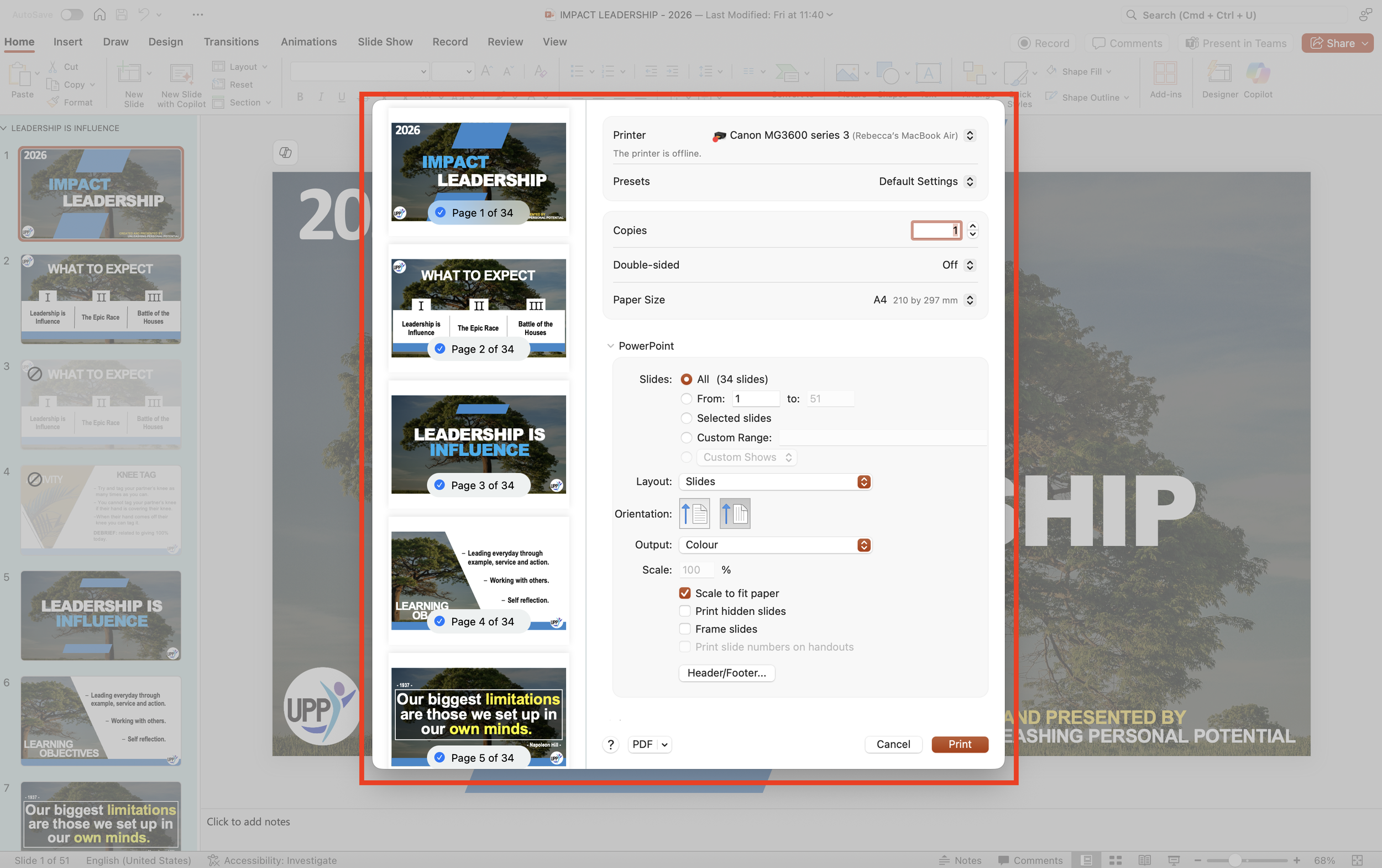
2. Select “Layout” then “9 handouts per slide”.
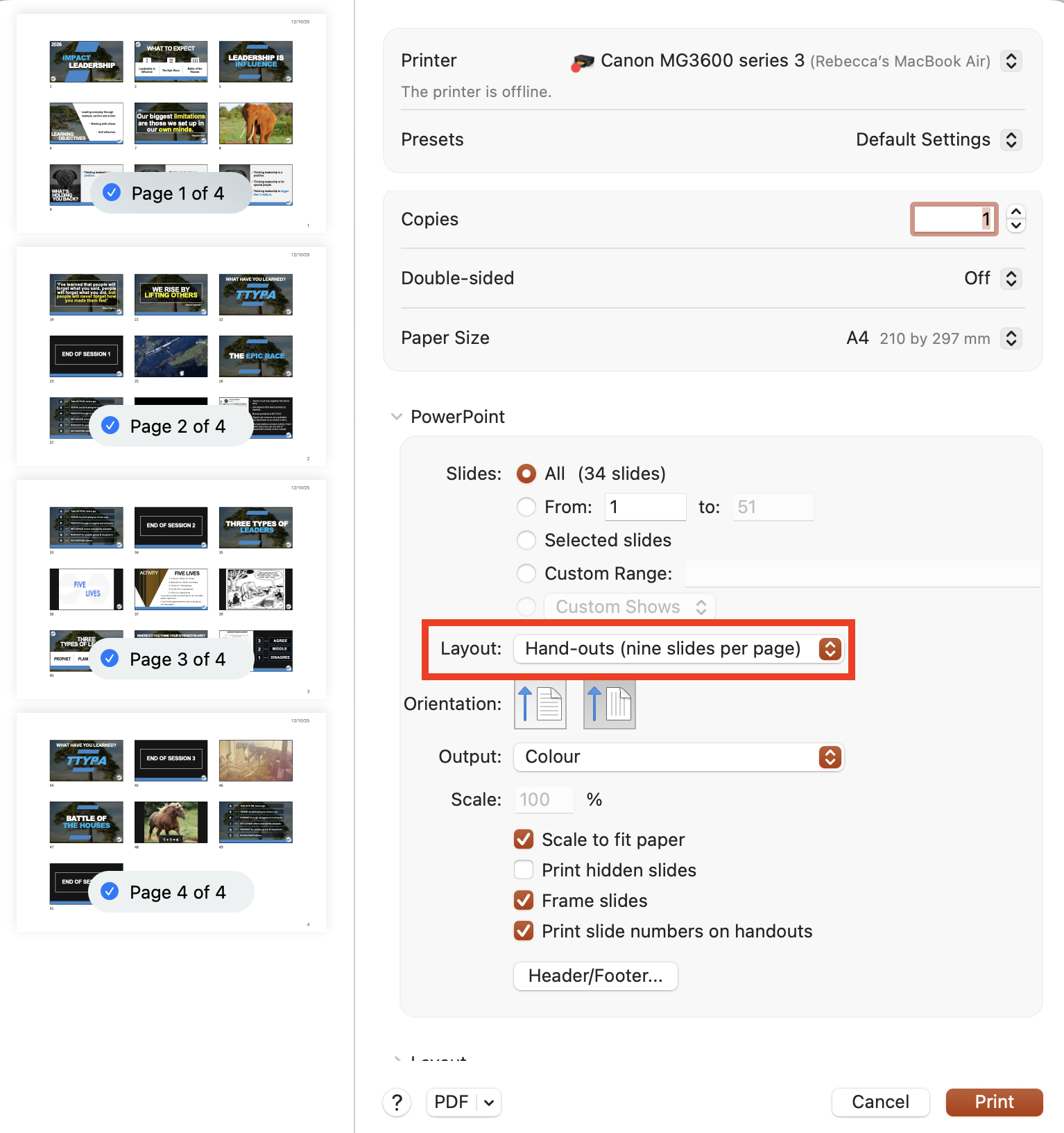
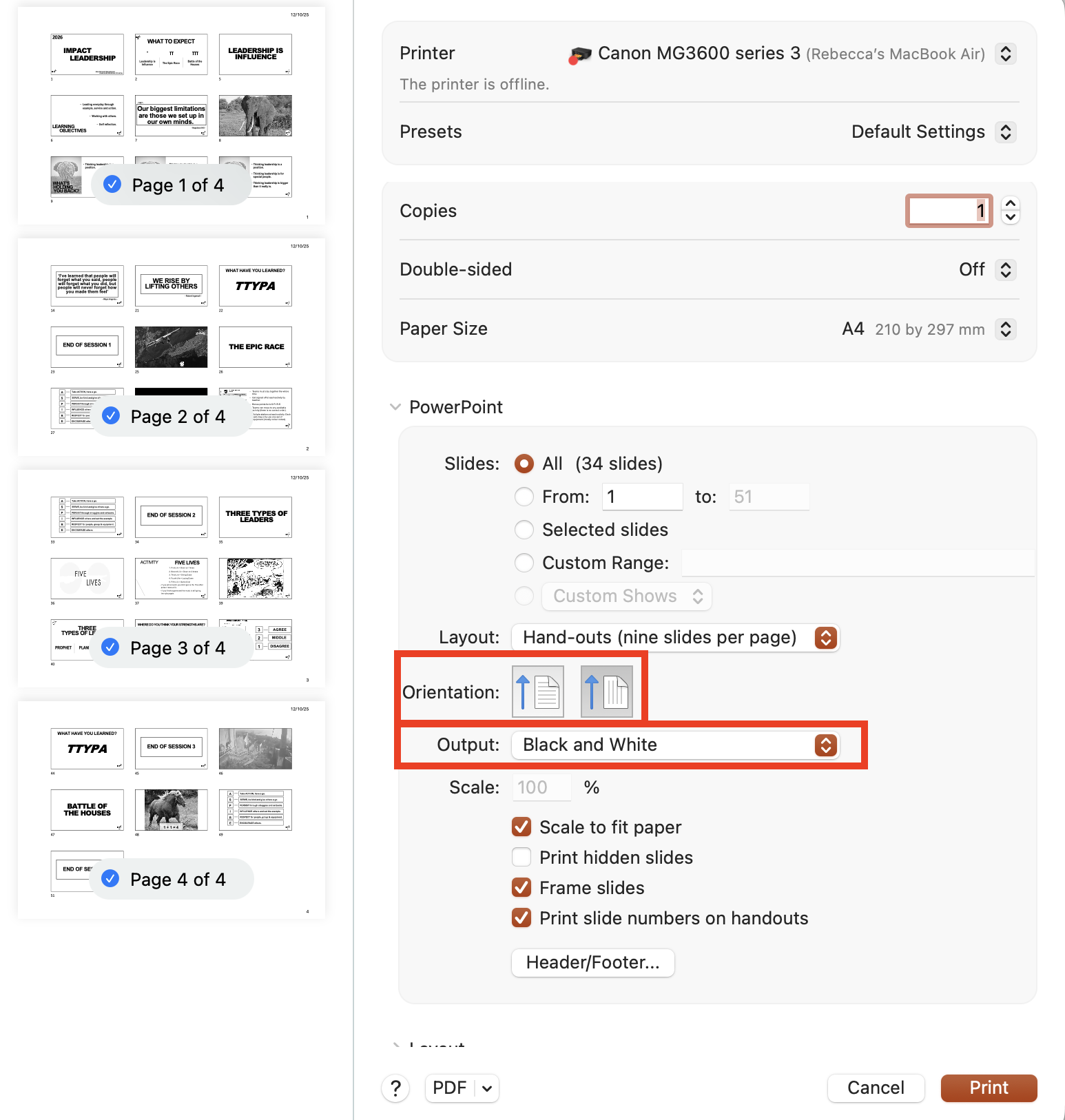
3. Orientation needs to be set to Landscape (box on the right). Make sure “Output” is changed to “Black and White”.
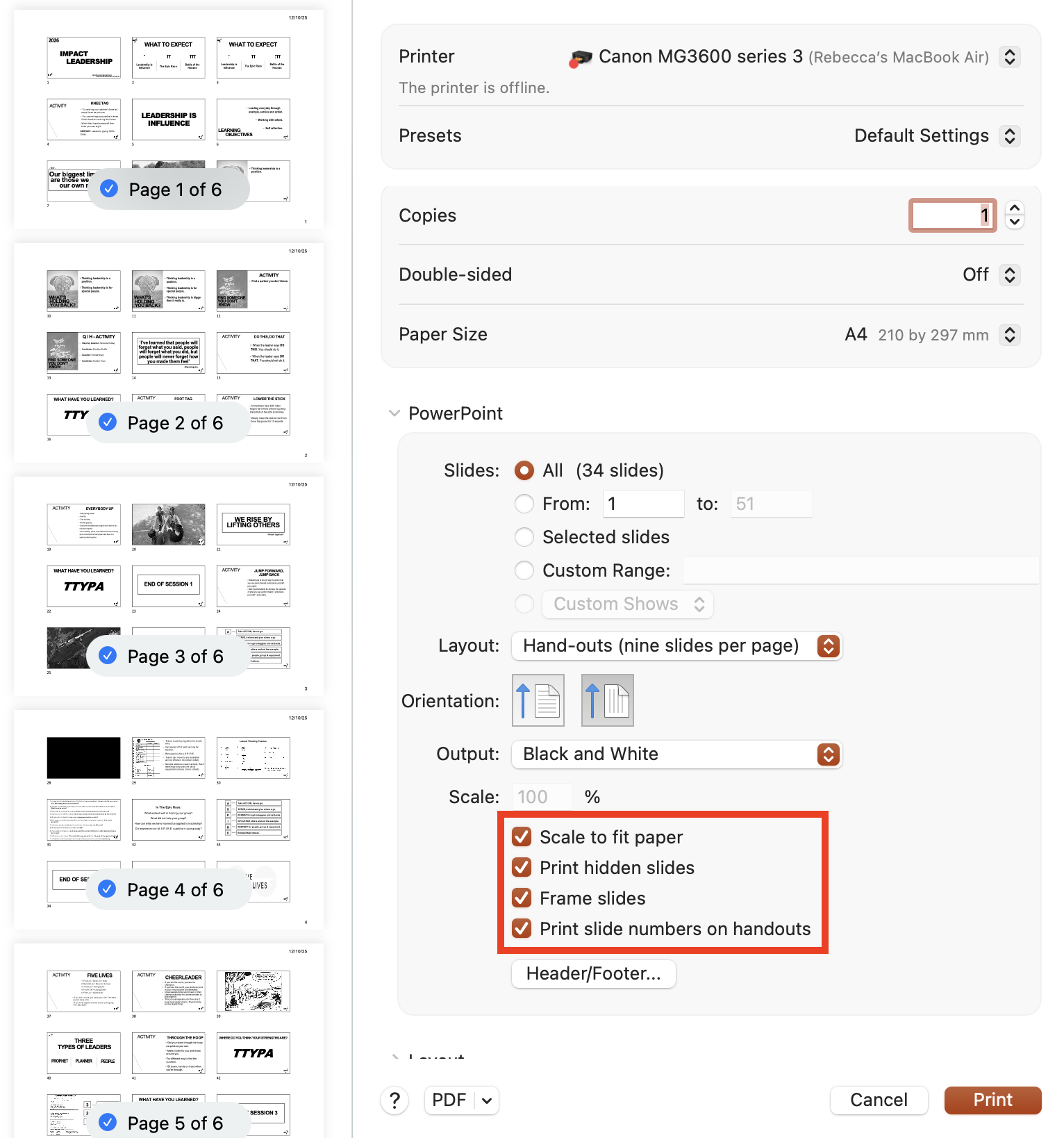
4. Make sure the “Print Hidden Slides” box is ticked, along with Scale to Fit Paper, Frame slides and Print Slide Numbers on Handouts.
5. Instead of clicking print, click the drop down arrow next to “PDF” in the bottom left hand corner. Then, click “Save as PDF” to save to your Files.
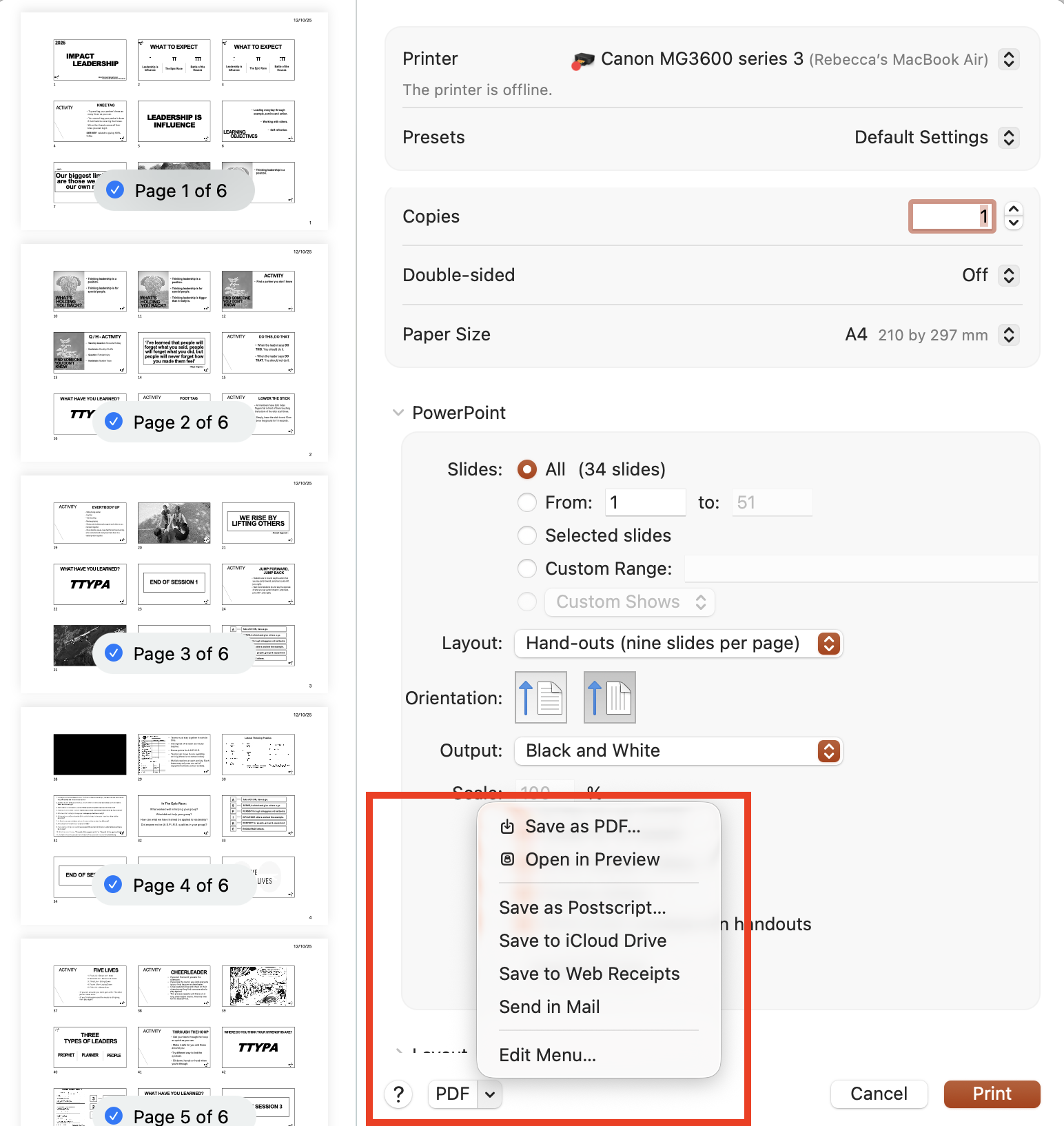
This document will then need to be saved in “Printable Slide Decks” in Google Drive.
Next, update the relevant playbook(s) with the approved playbook content. Make sure the formatting matches all other playbook content.
6. Inform the Team
Once all of the updates have been added to the relevant slide deck and playbook, decide when the most appropriate time to share the updates with the UPP team is.
Opportunities to share the updates with the team:
Mid-term team meeting
On The Tools (OTT) online training
In person team-intensive training
The most appropriate time to share with the team will be influenced by a number of factors:
Current time of the school year/term - has the new term just started?
How many bookings will the update impact? E.g. Aspire Higher in Term 4 will be run with significantly more schools than Thrive.
How much time will the team need for solo training, or coaching, to be able to learn and run the new content or activities?
Consider if training and/or coaching is required for all of the team. How and when will this be done?
Once all relevant factors have been taken into account and a plan has been made, discuss proposals with HOT / DIrector for approval.
When sharing with the UPP team, it is important to share the “why” of why the changes / updates have been made. Sharing some of the rationale behind the updates allows for the team to understand why the changes are necessary and how they will support the day to day facilitation of workshops and ultimately improve the experience students have.
Once the team has been informed of the changes, outline expectations of downloading the new slide deck(s) and printable slide decks as well as setting a time frame for solo coaching of new content / activities to be completed. Send a follow-up email to all team members with these details, as well as links to the new Slide Deck and printable slide decks so they can be found easily.