
Updating Work Schedule in Google Sheets
a “how to” process
This is the easiest way to record days in school, office days and Time in Lieu (TIL) and negates the need for timesheets for PT/FT team members. Time Off In Lieu (TOIL) should be taken close to it being earned when mutually deemed appropriate by HOT / Coach and facilitator.
STEP 1:
Open your Google Calendar.
STEP 2:
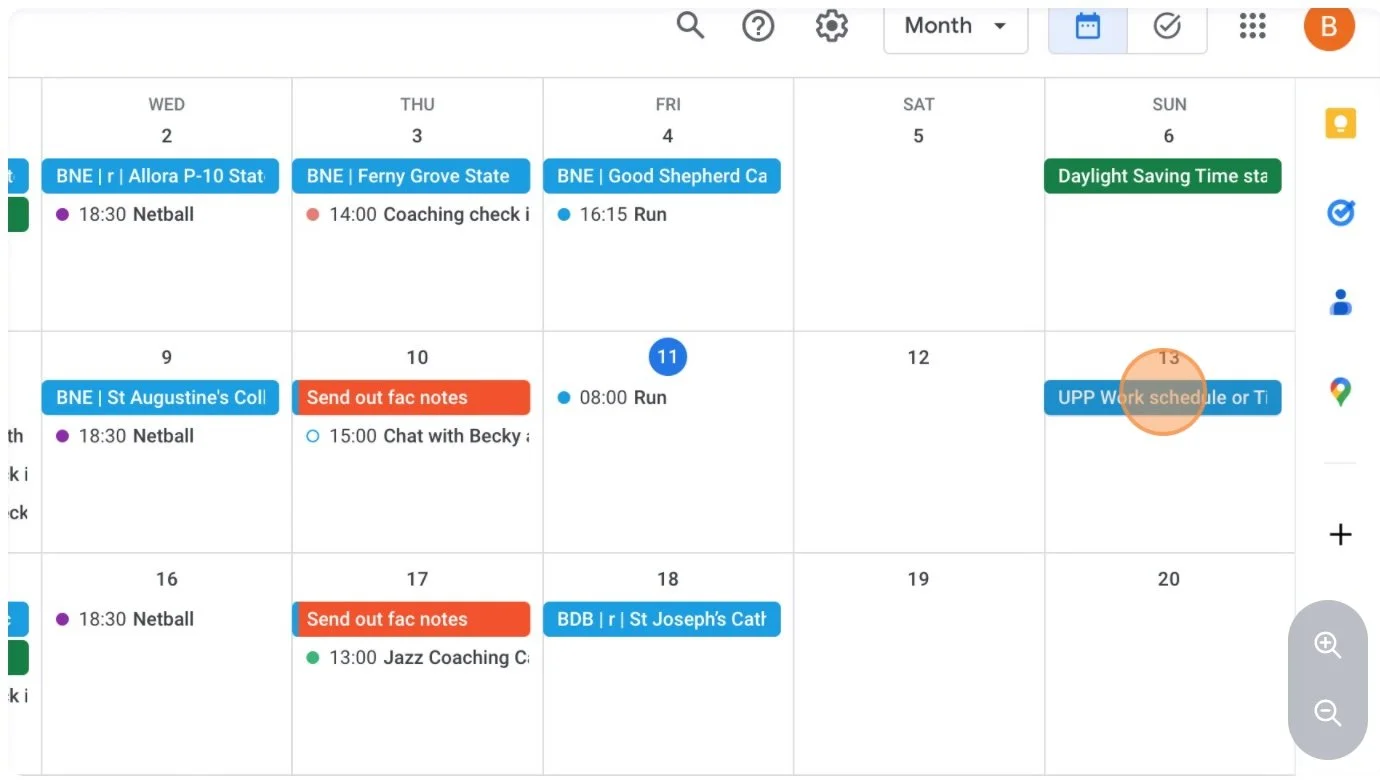
Click on "UPP Work Schedule" which appears in your calendar every other Sunday.
STEP 3:
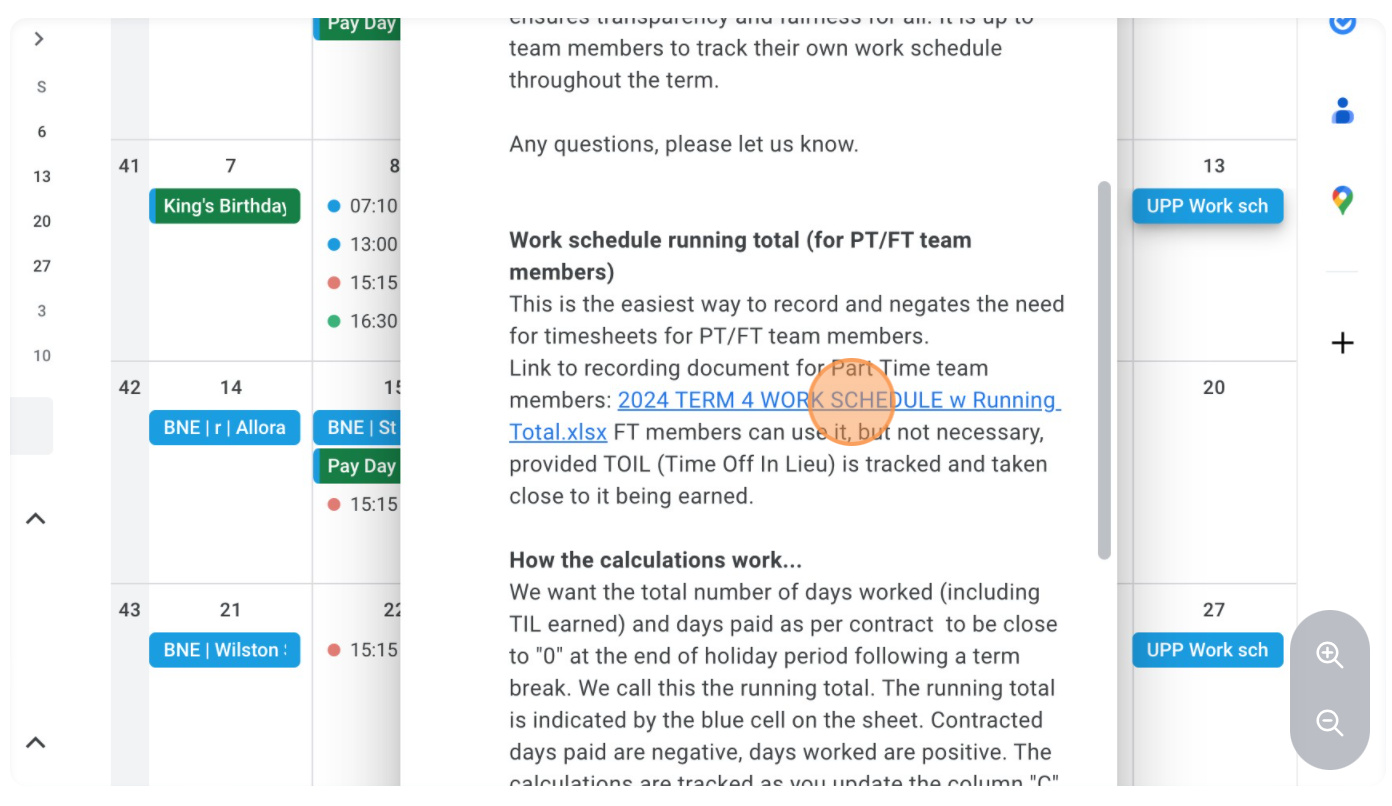
Click on the link underneath the heading “Work Schedule Running total”. The file will be named with the year and the term number, such as "2024 TERM 4 WORK SCHEDULE w Running Total.xlsx"
STEP 4:
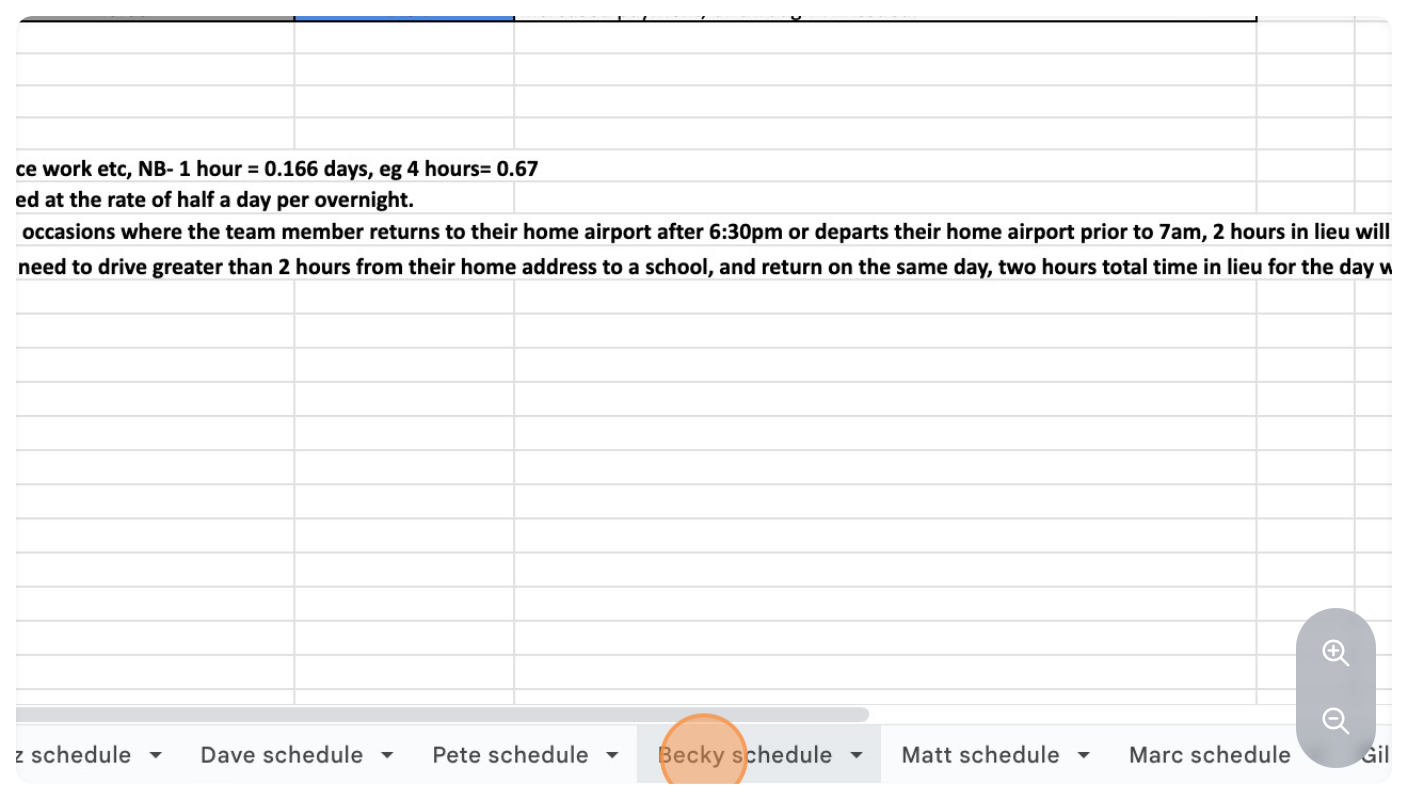
Click on your personal tab, such as "Becky schedule".
STEP 5
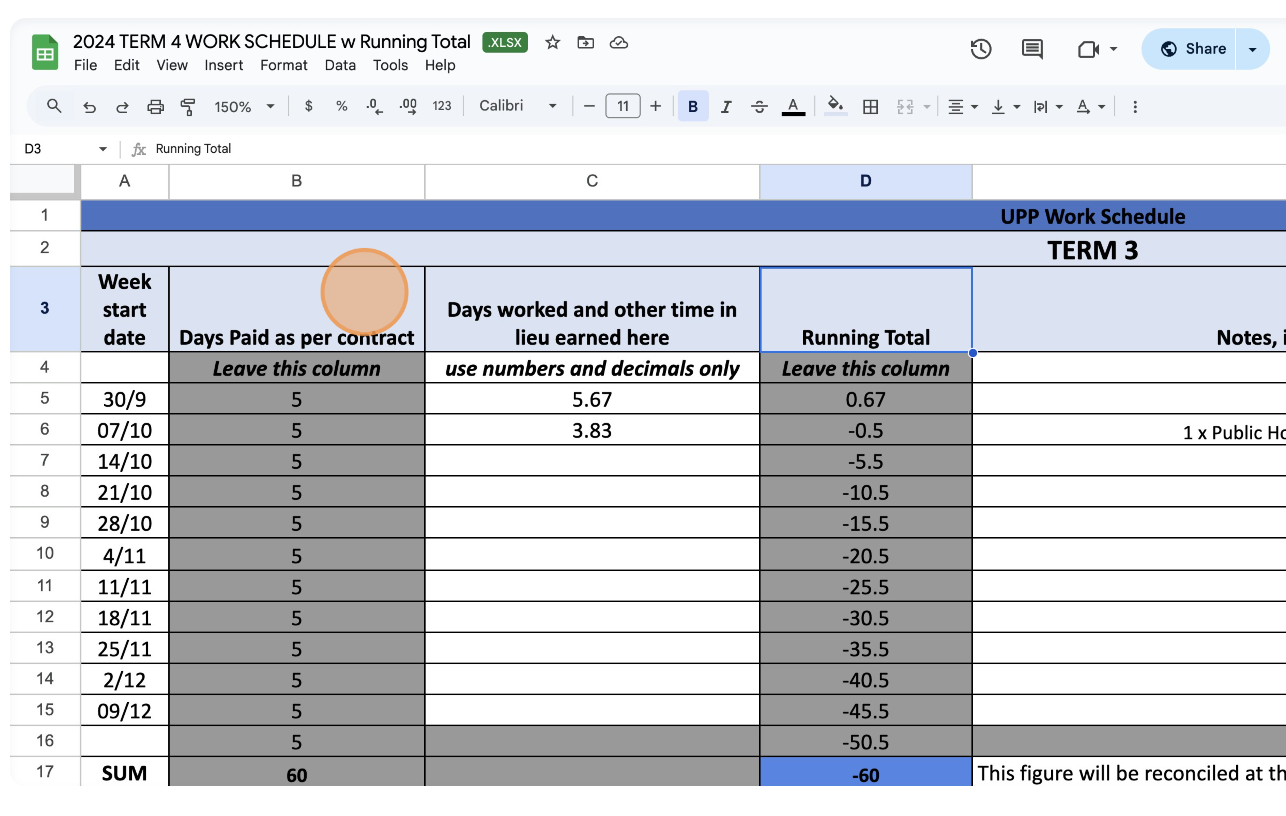
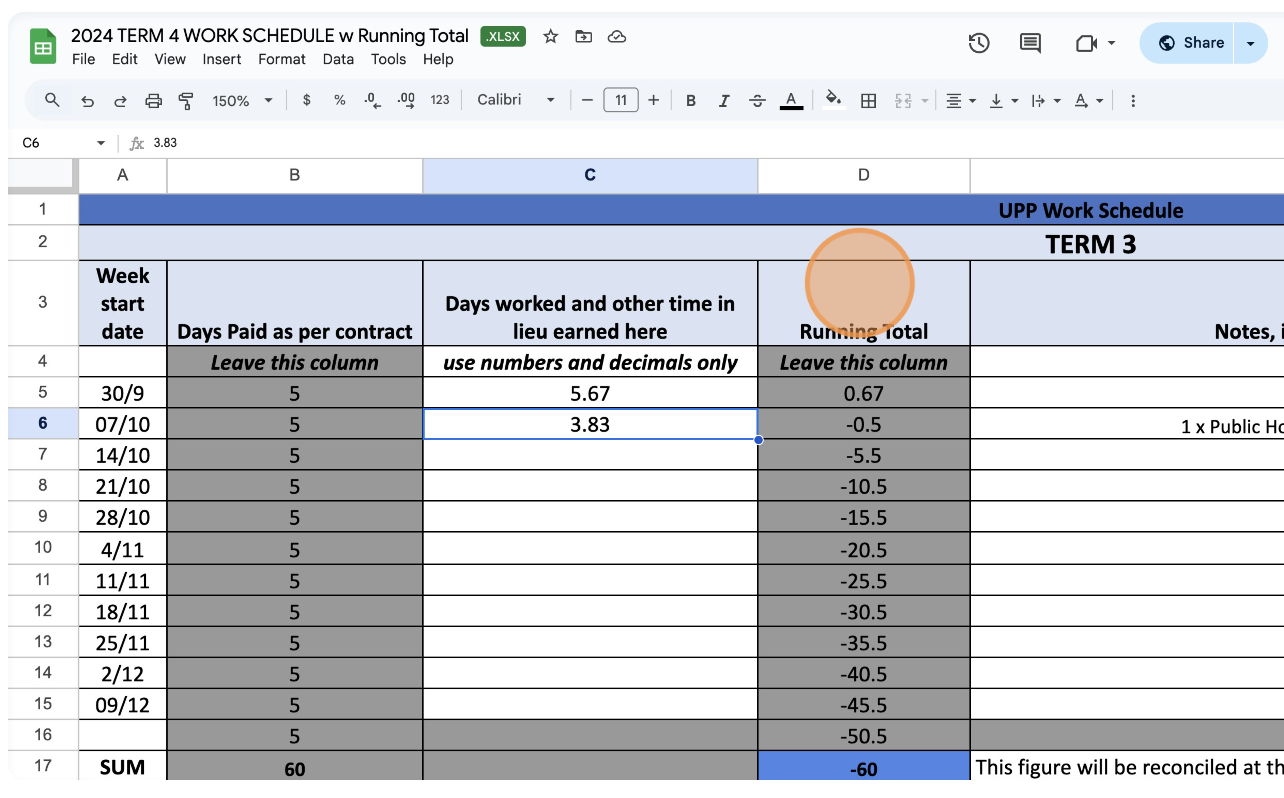
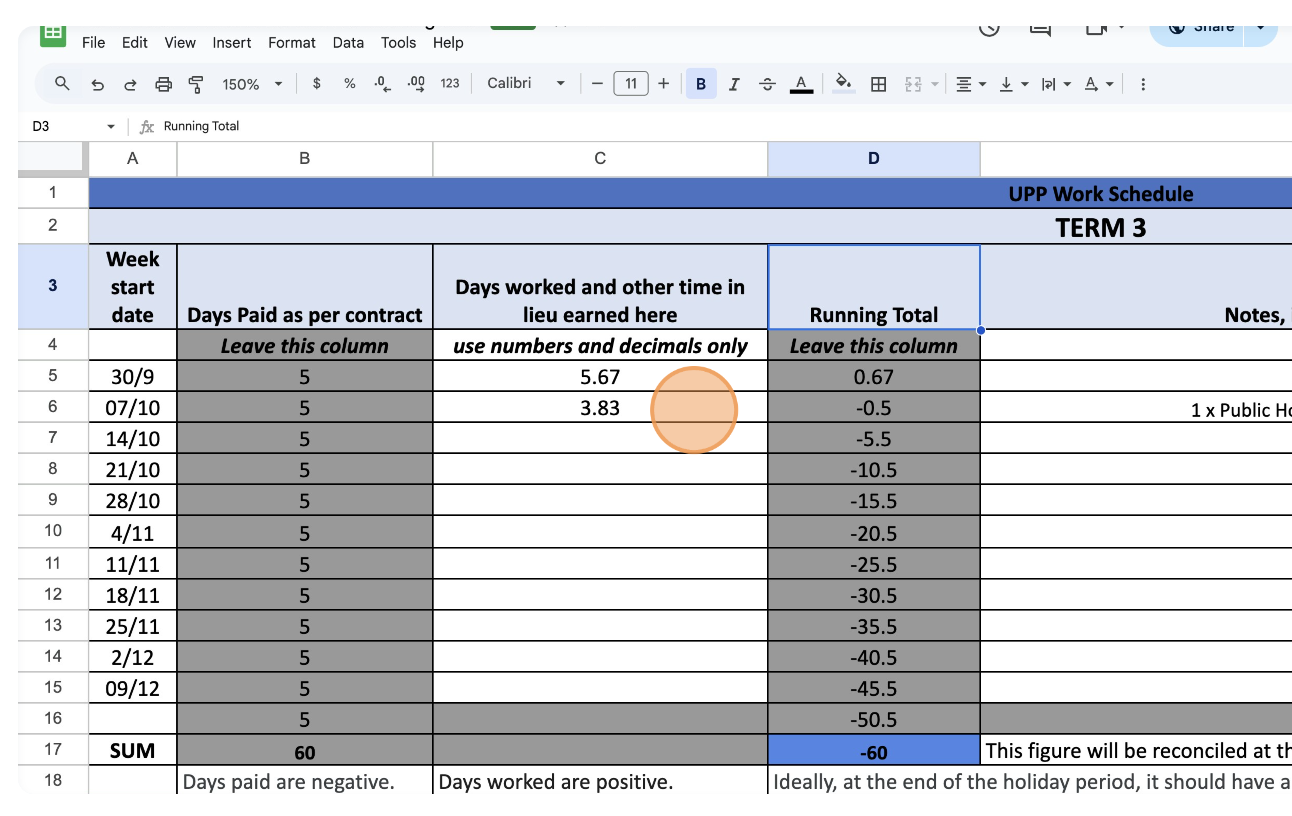
Column B and Column D are dark grey and have been pre-formulated. Do NOT change any numbers in Column B or D.
STEP 6:
Column D, the Running Total, will automatically update as you enter numbers into Column C.
STEP 7:
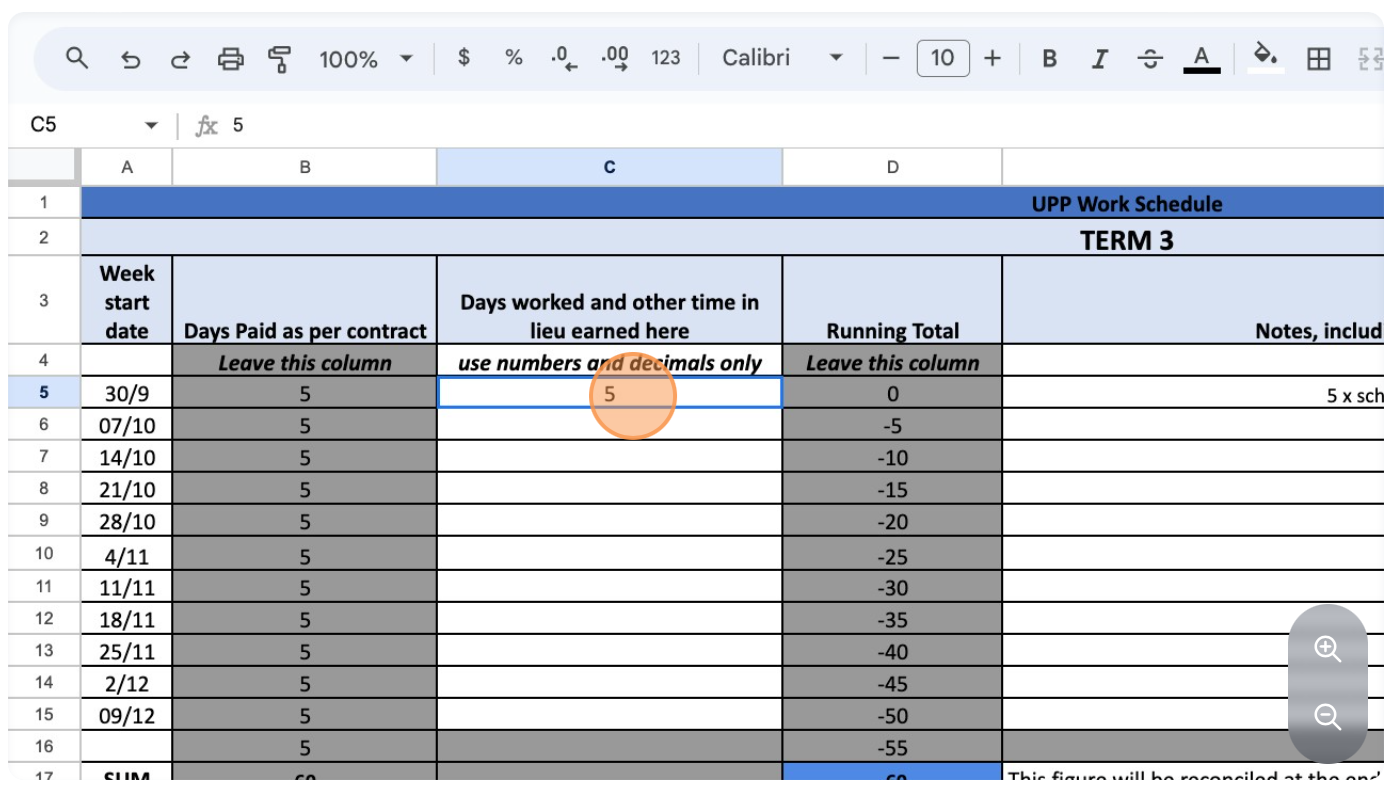
Enter the number of days worked and any Time in Lieu (TIL) earned. TIL may be earned from long local travel (2hr+ drive one way), overnight stays and early departing/late arriving flights. There is additional information explaining this at the bottom of the table on the google sheet document.
STEP 8:
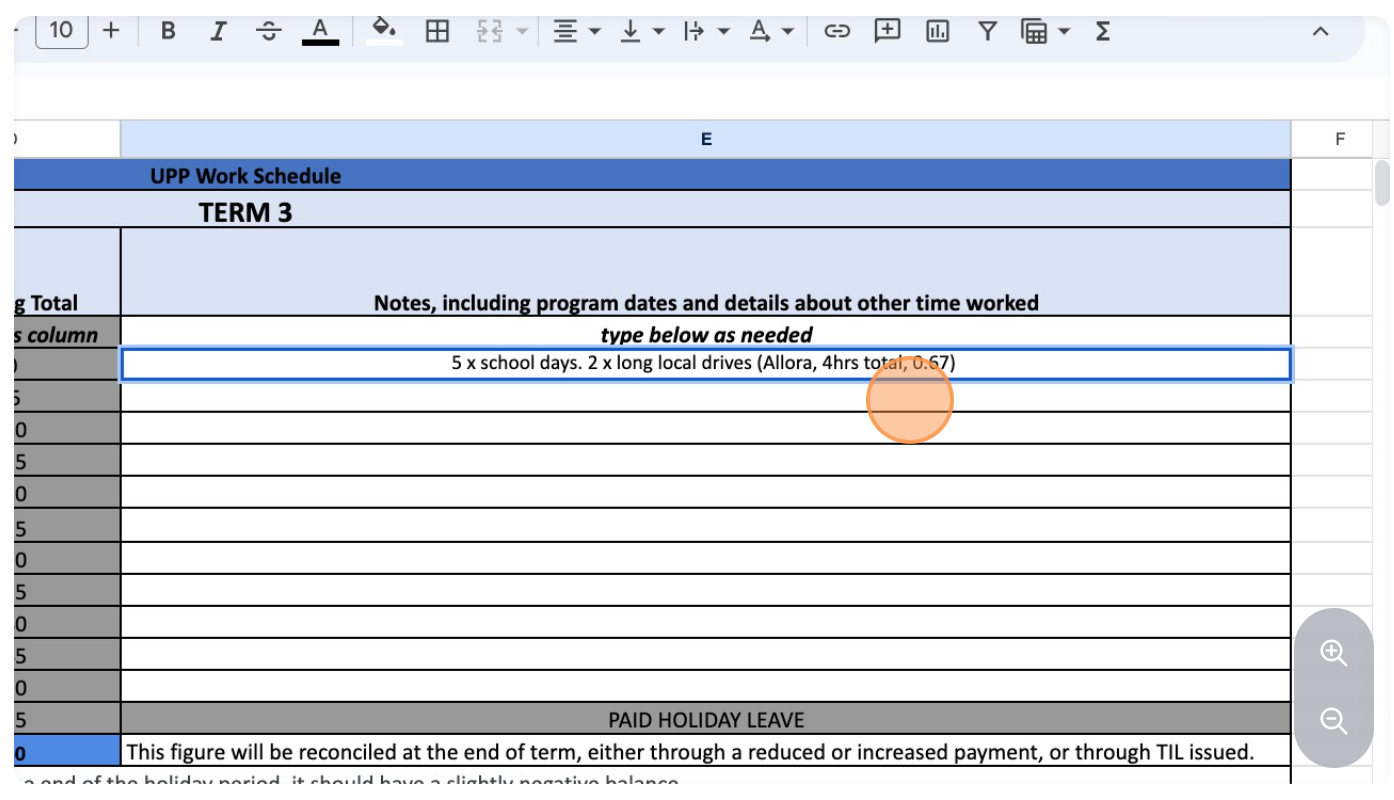
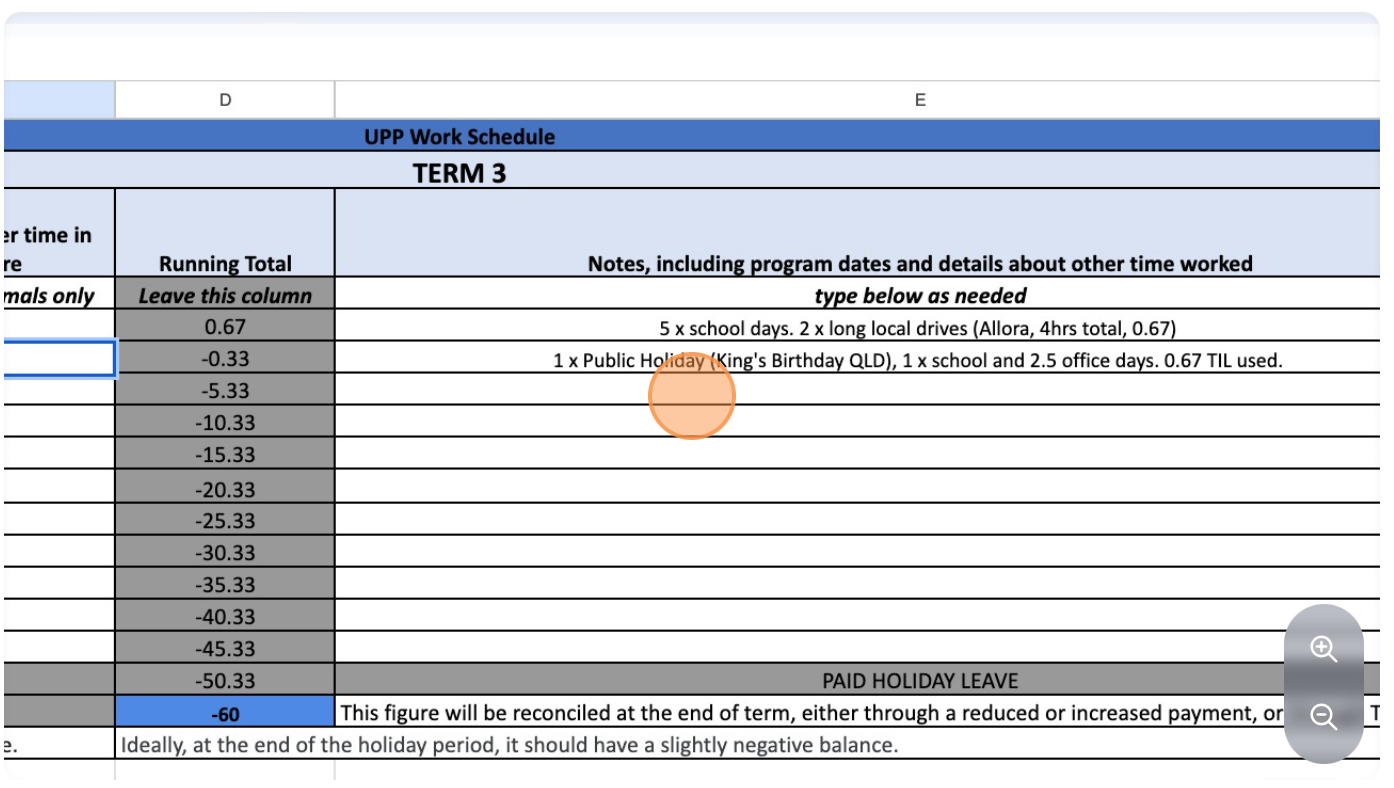
In Column E, detail any relevant information, such as the number of days in school, days in the office and how time in lieu was accrued.
STEP 9:
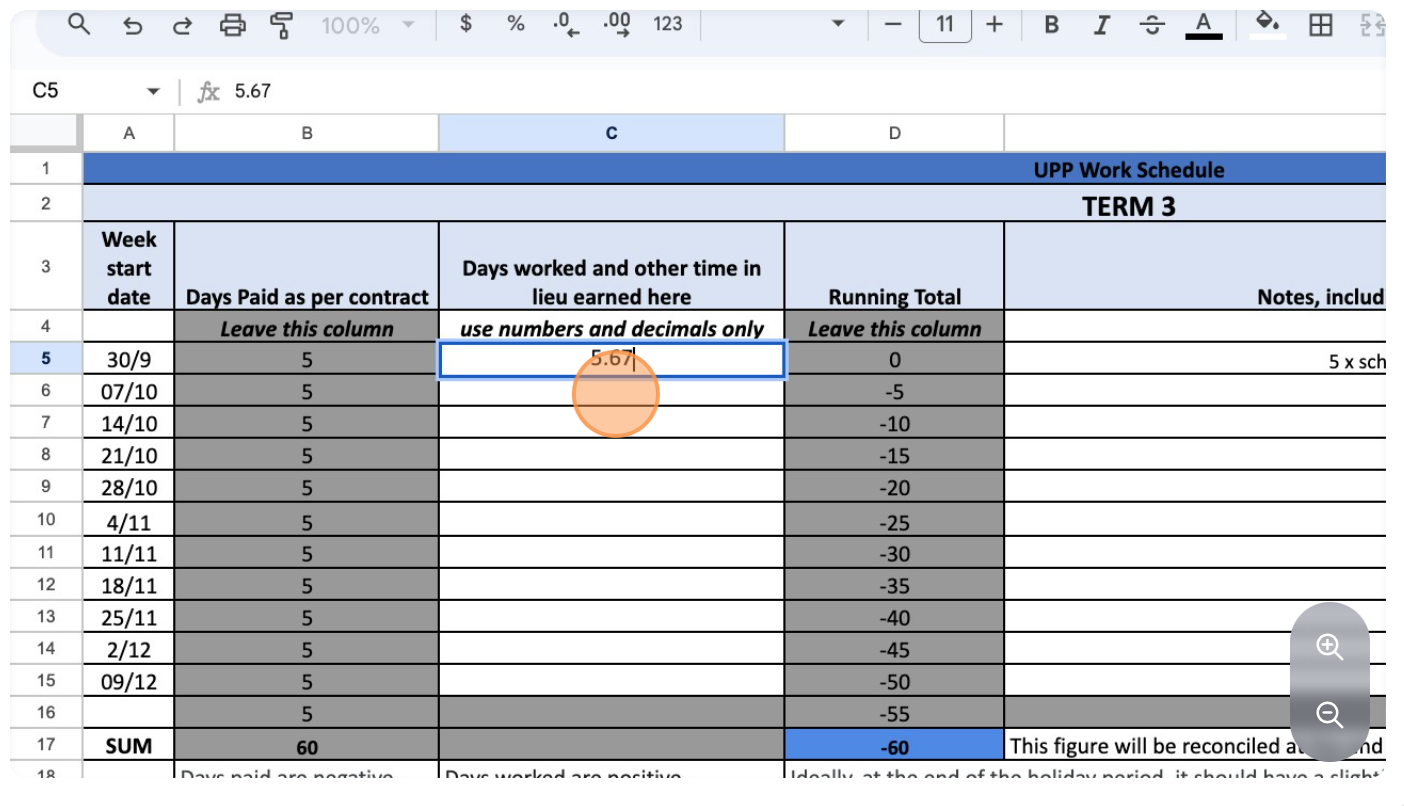
Update the number for days worked if necessary.
STEP 10:
Repeat the process for the following week(s).
STEP 11:
If accrued TIL is used, this is deducted from the final number of days worked for that week in Column C.
STEP 12:
To make it easier to keep track of Time in Lieu (TIL) accrued and Time Off In Lieu (TOIL), update the spreadsheet at the end of each week.