
VOLOPAY
PROCEss to onboard a new team member
step 1 - ask admin team to invite new team member to platform
The admin team can simply invite a new team member by:
Logging into Volopay
Going to the “Company” section in the left hand side toolbar
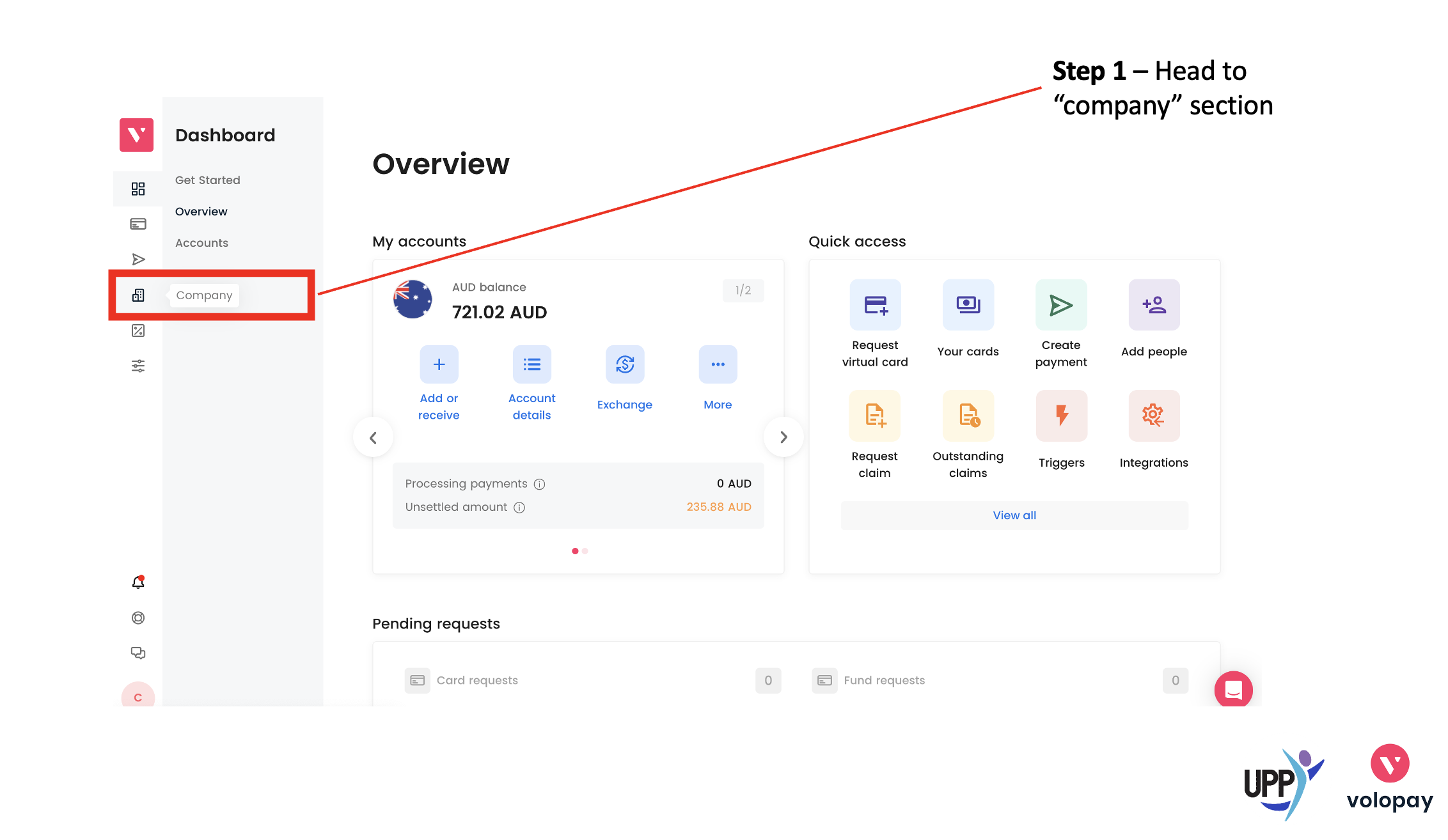
Going to the “People” section on the left hand toolbar and Clicking the “Invite People” button in the top right hand corner on the screen
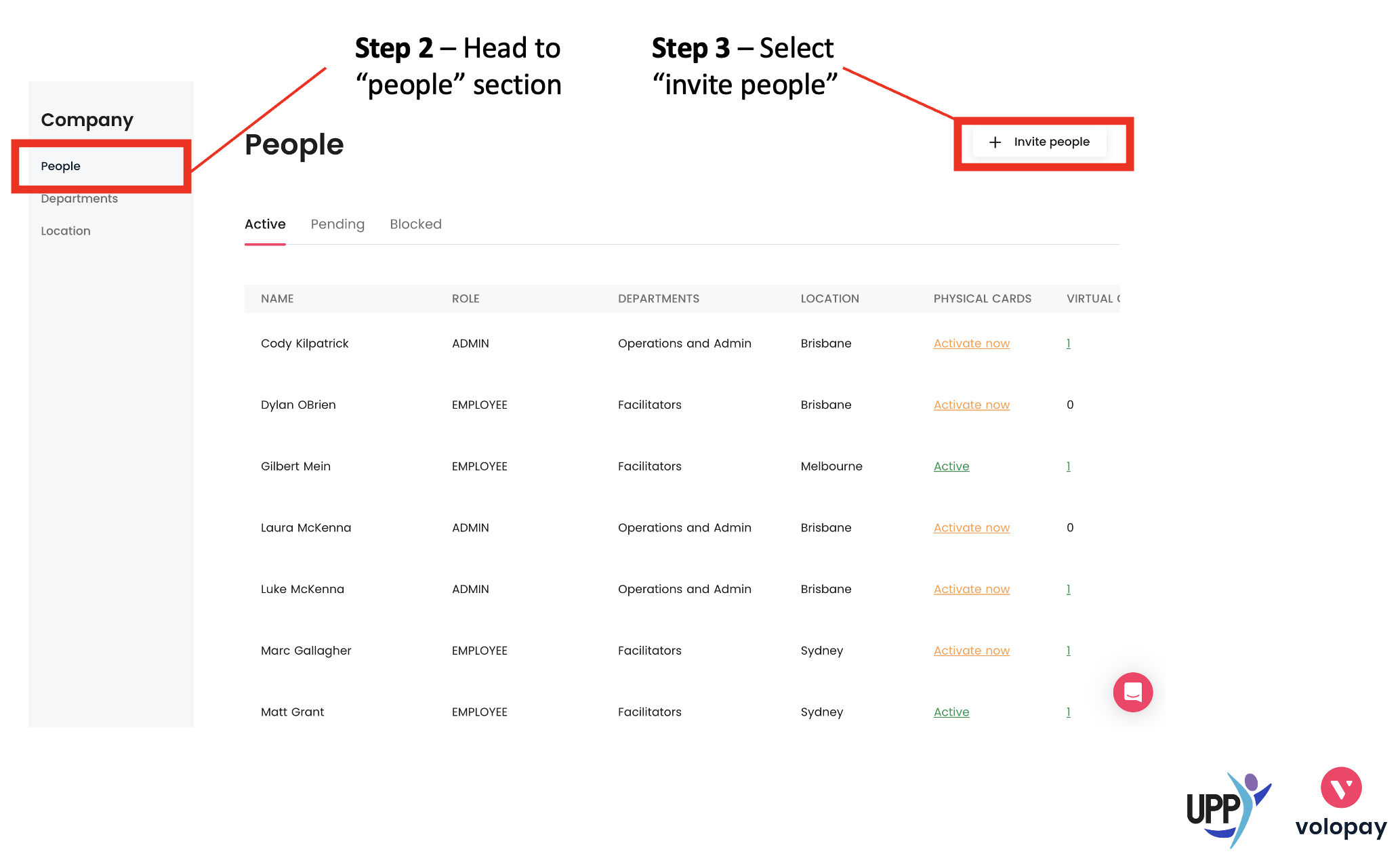
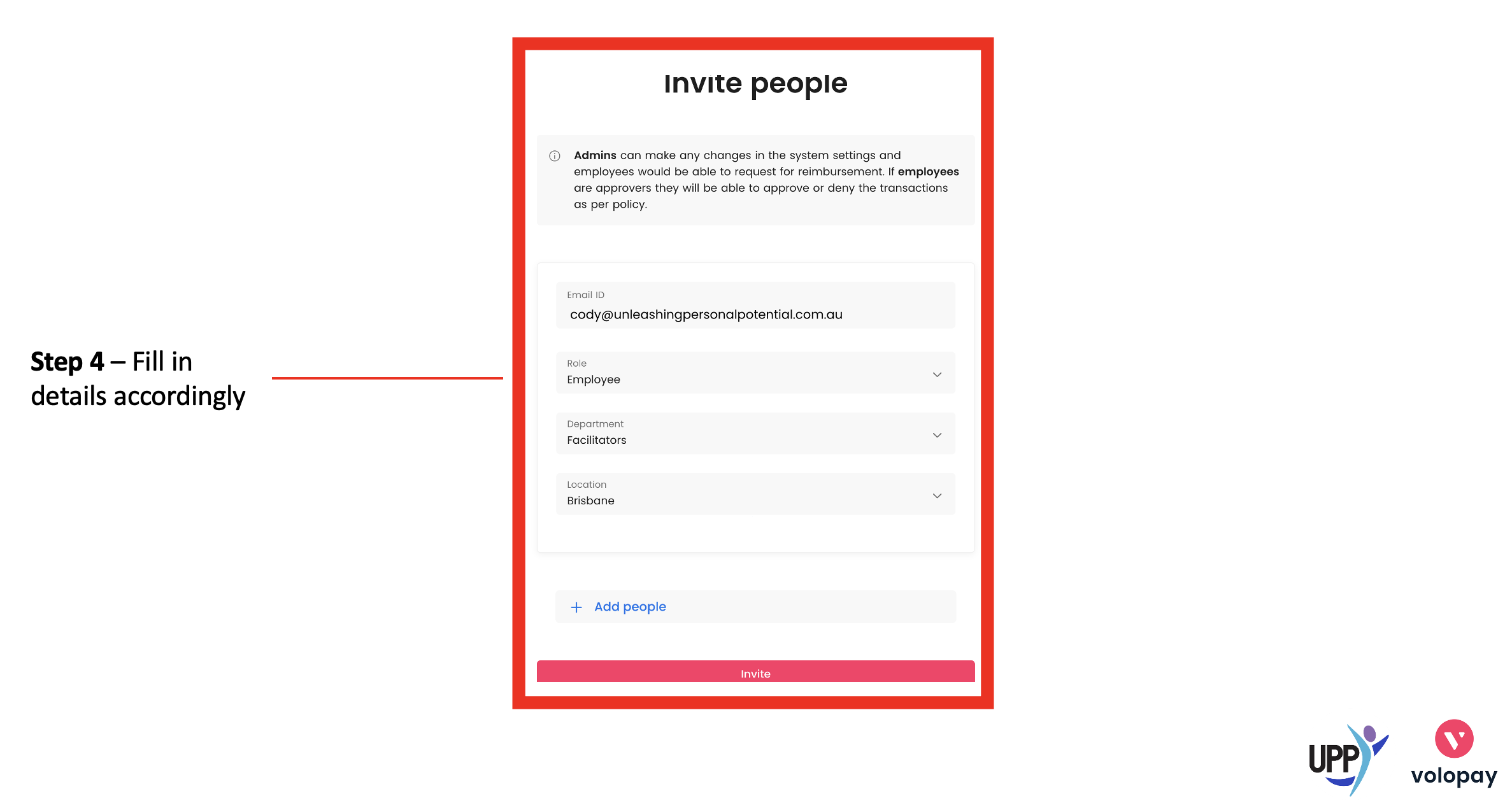
Correctly filling in details as prompted and clicking “invite” to confirm
Step 2 - share instructions with the team
After you have invited the new team member/s they will receive an invitation email from Volopay directly. They will need to fill out details themselves as prompted (easy process) and will then be a member within our “company” as recognised on Volopay.
To make this step easier, share the following email with the team (ensure you fill in the below template first):
Recipient: New team members being invited to the Volopay platform
CC: HOT and OL
Subject Line: ACTION REQUIRED: Volopay Set Up and Induction
Hi XYZ,
Here at UPP we use a finance system called Volopay to assist our team with work related expenses. The system is used as a way of easing the temporary pain of missing funds from your own personal account whilst waiting for reimbursement from UPP on your next Pay Day, as our team had to do in the past. Please see some information below on how to set up this system.
Setting up Volopay:
Create an account: I have invited you to join our “company” through Volopay platform. This will send you an email directly, and you will need to follow the steps on your end to add personal details as prompted. If you have any issues with this please reach out to me directly. You may need to check your spam / junk folder if you cannot find the email initially. Let me know if you do not receive this email.
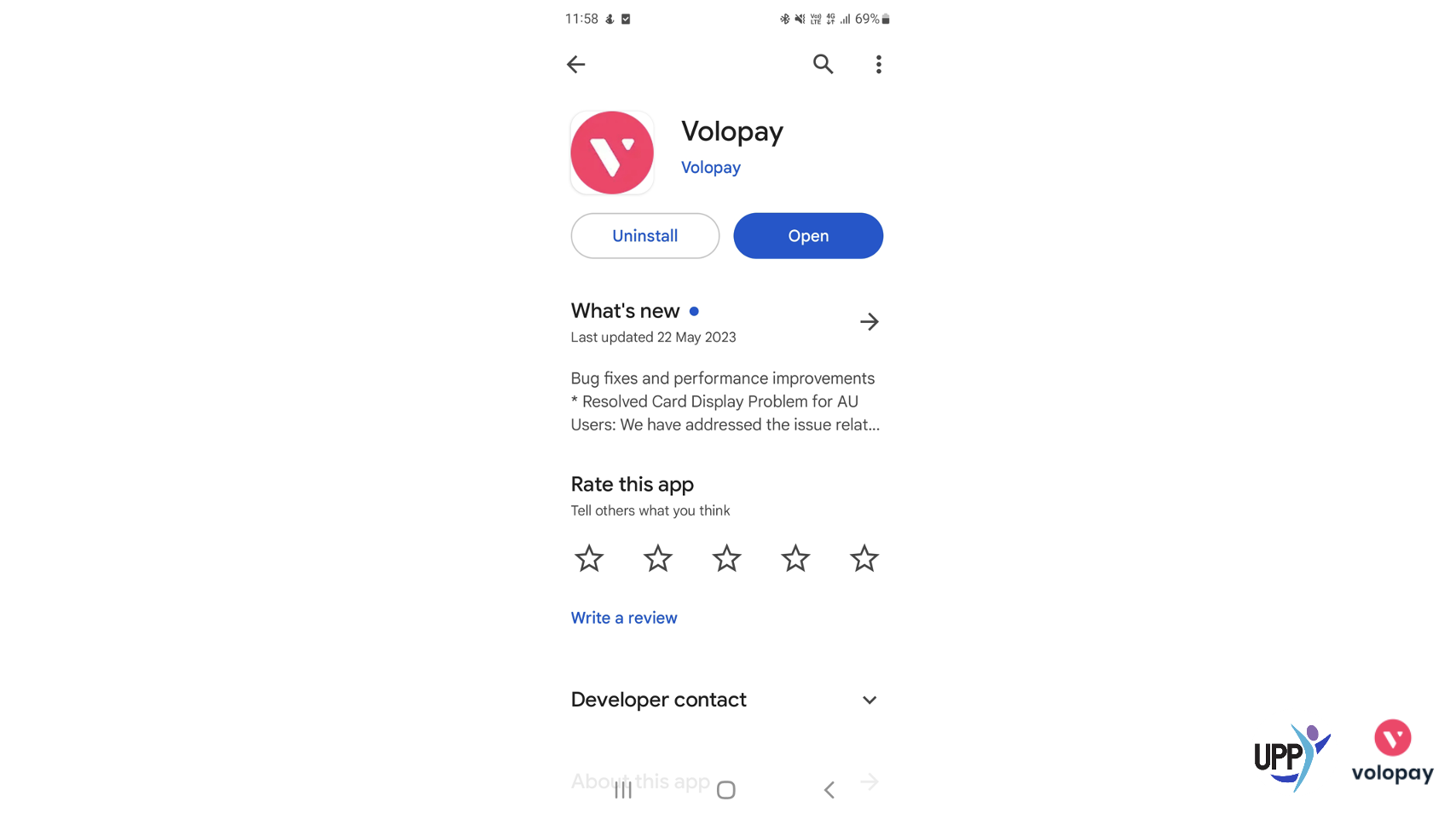
Download the Volopay App - Downloading this app will make it easy for you to upload receipts when you use your UPP card. See image below for correct app to download:
Advise that your account has been created: Once you have followed the above steps let HOT and I know. From here we can add a Virtual Card in your name and I will then share further information on how to integrate this with your own digital wallet to begin using this system.
Once you have read through this email please respond confirming you have:
Created your account and are ready for a virtual card to be created for you
Downloaded the VOLOPAY APP
Read through and understood (or seeking clarification on something within) this email
Thank you and I look forward to hearing from you soon!
Cheers,
YOUR NAME
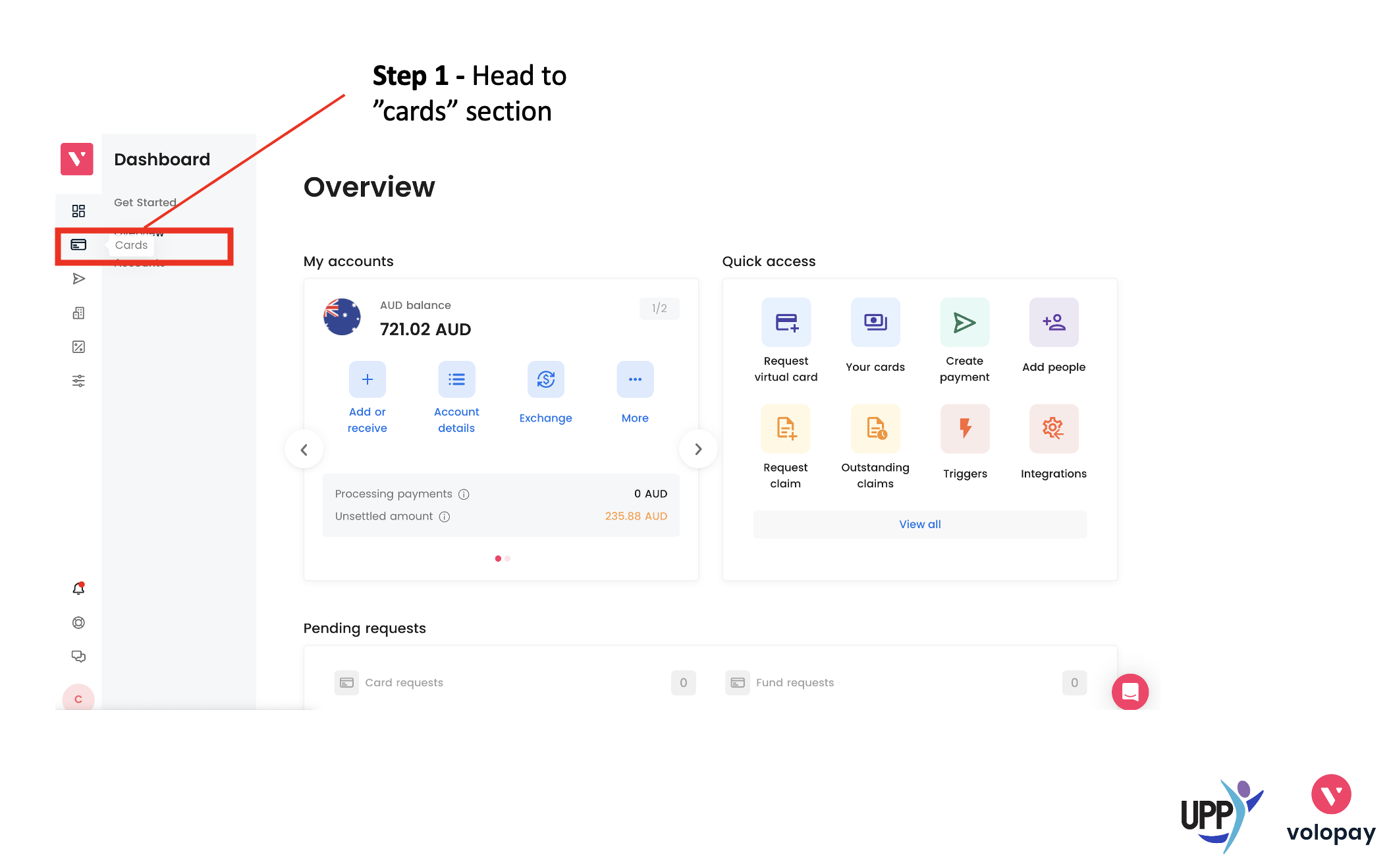
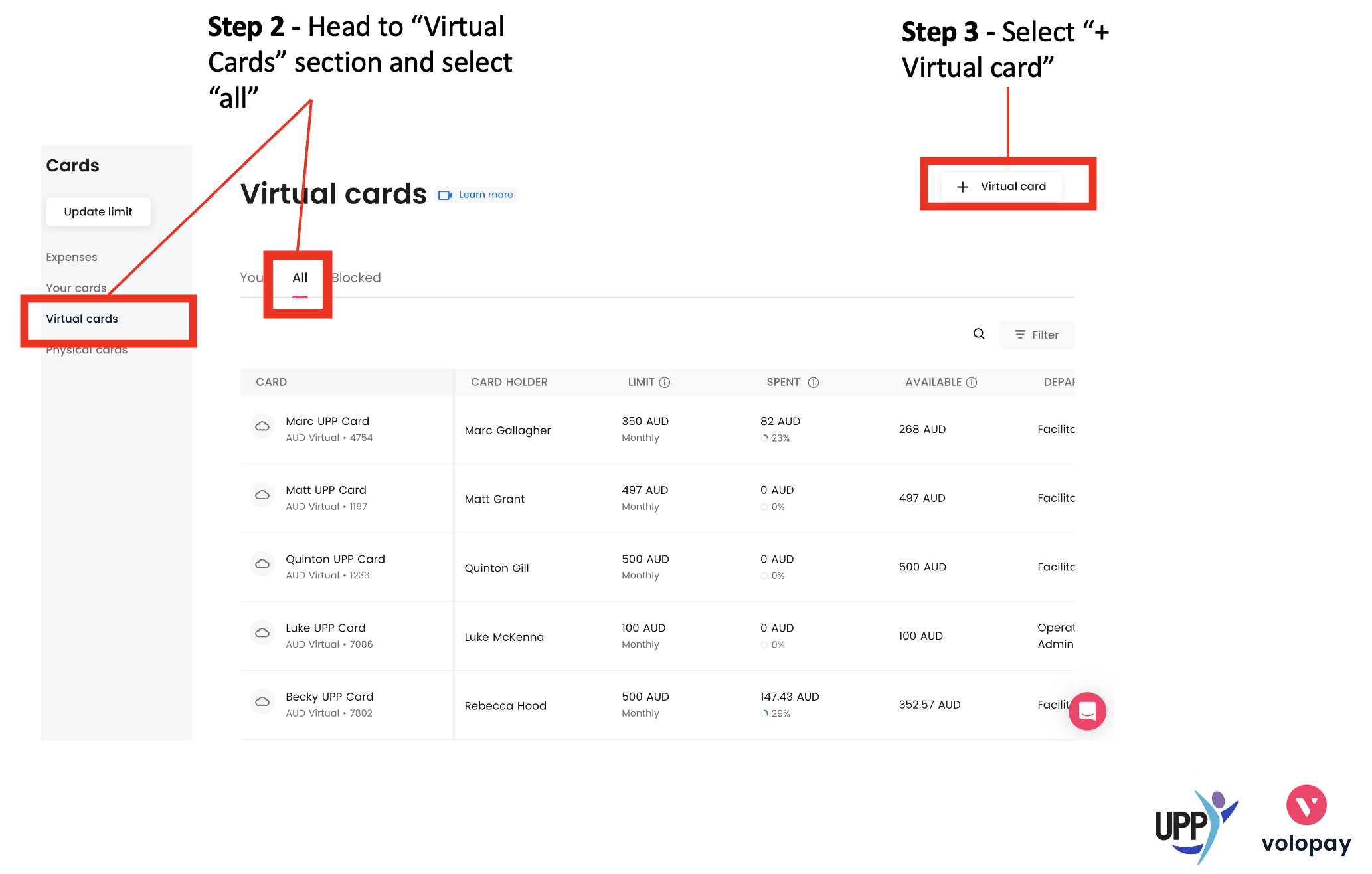
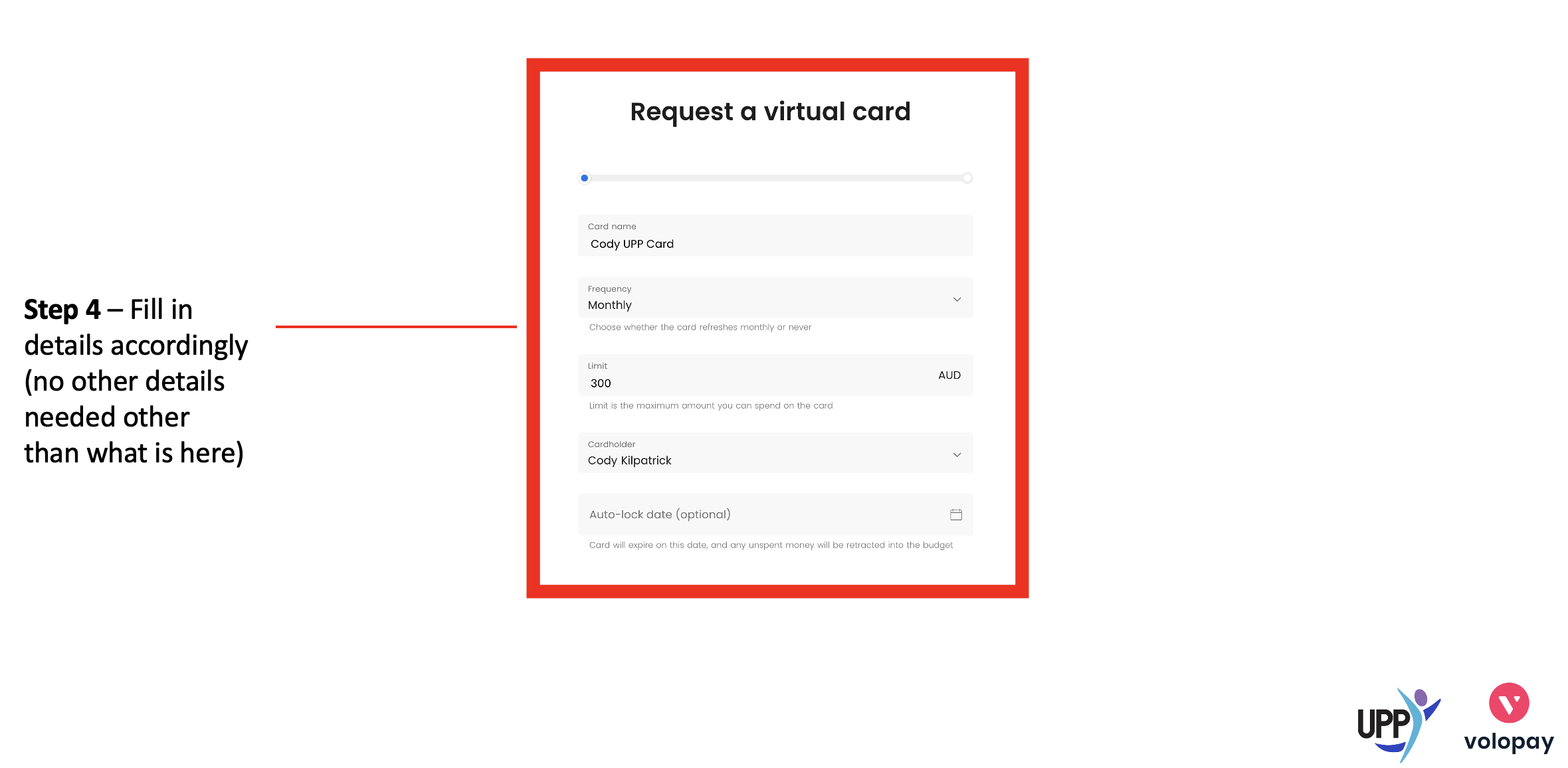
step 3 - create a virtual card for the new team member
To create a Virtual Card for the new team member follow the process below:
step 4 - advise the team member they are ready to integrate their virtual card and begin using the volopay system
The process of the virtual card being created could take a few hours, but the creator of the Virtual Card will receive an email notifying of the successful card creation. Once this email has been received you can then share the below email with them in the same thread that the email was sent in Step 2:
Hi XYZ,
Thanks for completing the steps so far to help us in the process of onboarding you with Volopay. A virtual card has now been created for you and it is ready to be integrated with your own digital wallet. See this information below:
Integrate Volopay to your digital wallet: Please see the instructions below on how to add your Virtual UPP Volopay card to your own digital wallet (Apple Pay / Google Pay)
VOLOPAY INTEGRATION WITH APPLE PAY AND GOOGLE PAY (iPhone and Android users)
Below is further information on how and when to use the Volopay system. Please read through this carefully and let me know if you are unsure on anything.
When to use the UPP Volopay Card system:
For any security deposits / holds of funds when travelling
Hire cars, hotels / motels, etc.
Work related fuel expenses:
As necessary for work related fuel expenses, uploading the receipt to the app (as below)
Filling up a hire car before returning it when on a work trip
Purchasing equipment for work
Physical equipment such as puzzles, jenga, tennis balls, etc.
Printing resources
When directed to use it elsewhere by HOT, Team Leader or Director
How to use your UPP Volopay Card:
Acts as a normal virtual debit card
Tap and go mostly
Pin may be needed at some merchants, you pin can be found in the card section on the Volopay website in the cards section (ask if you are unsure)
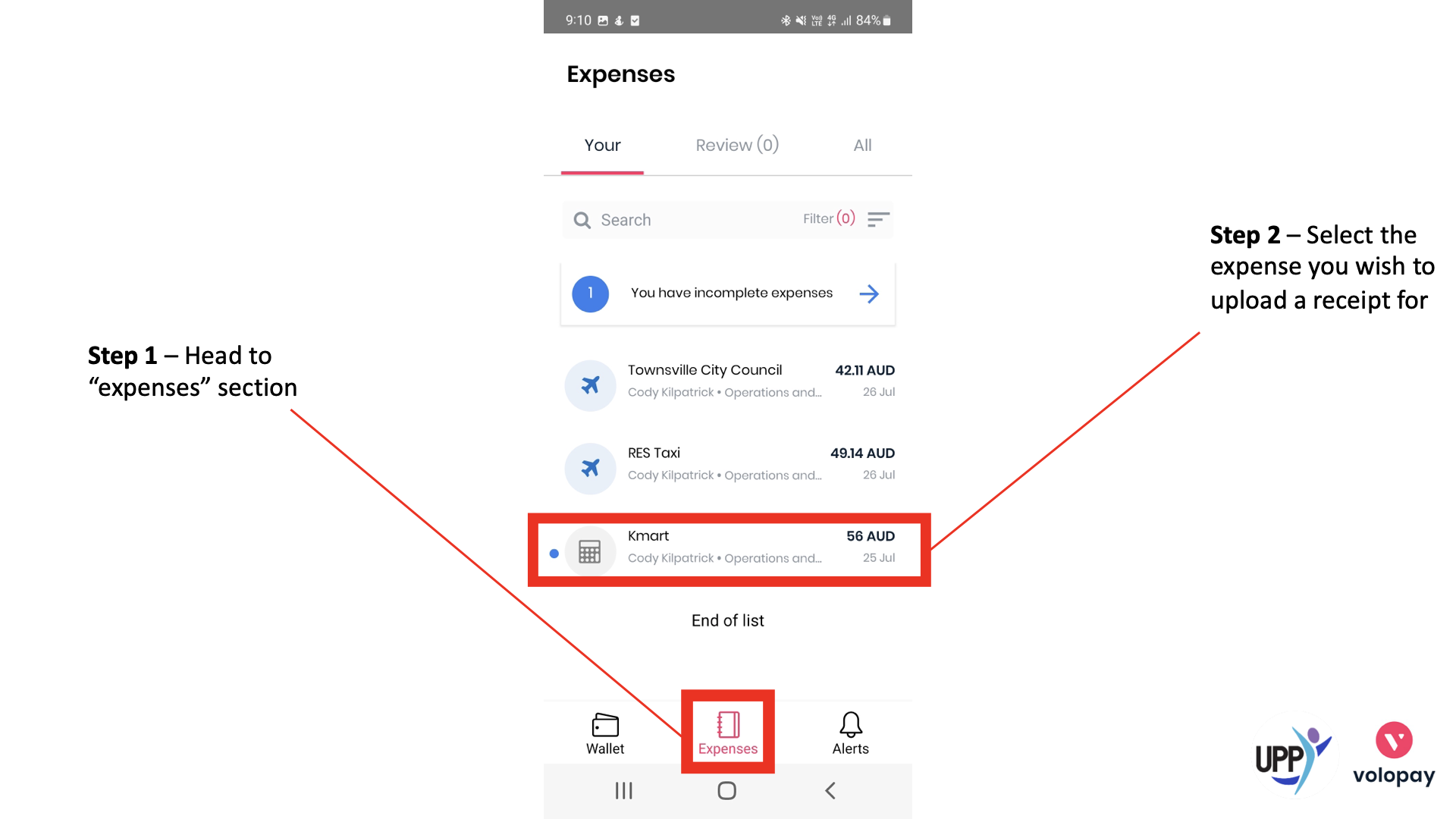
Take a photo of the receipt as soon as you get it
This can be uploaded via the Volopay App following the process below:
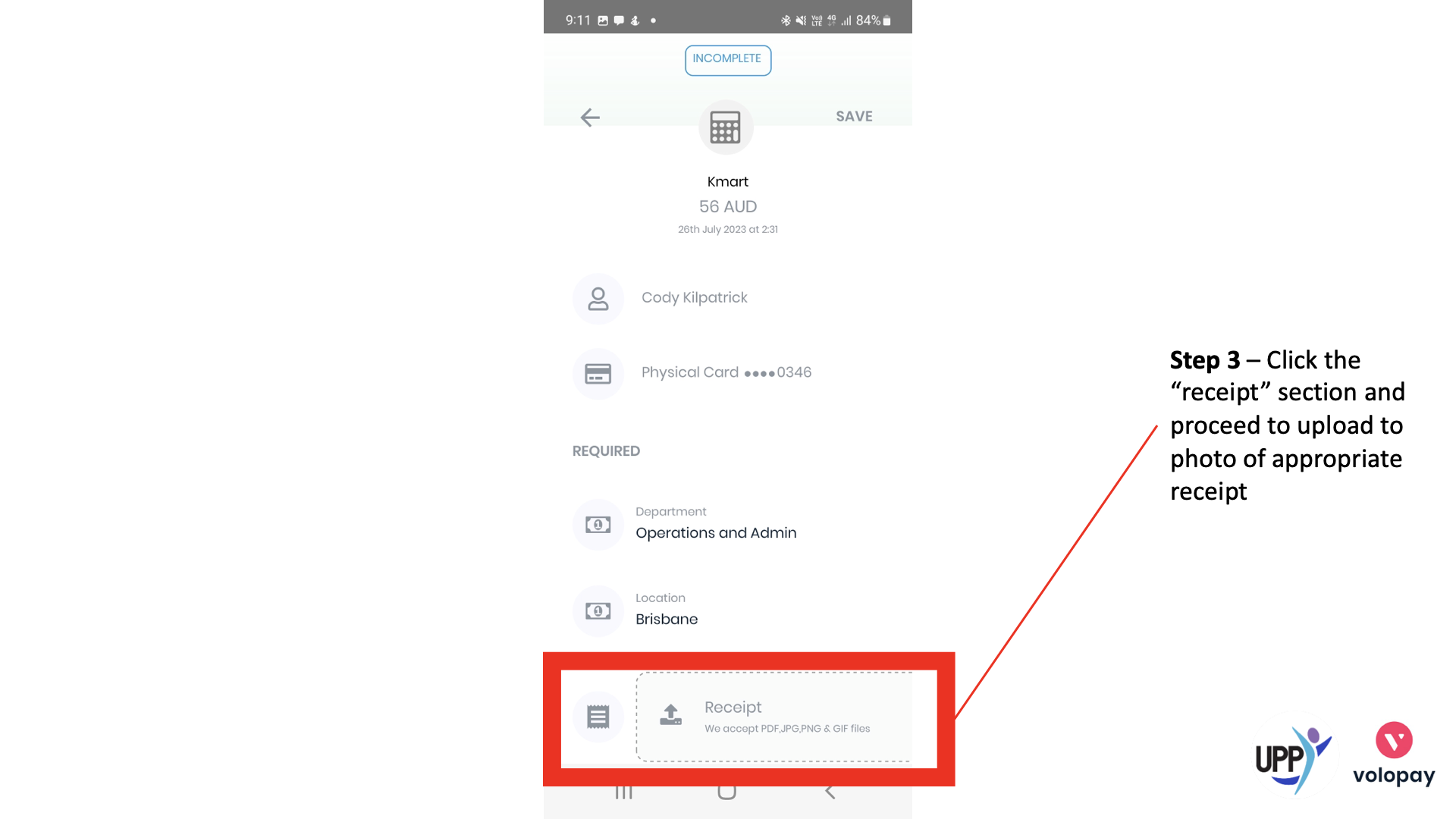
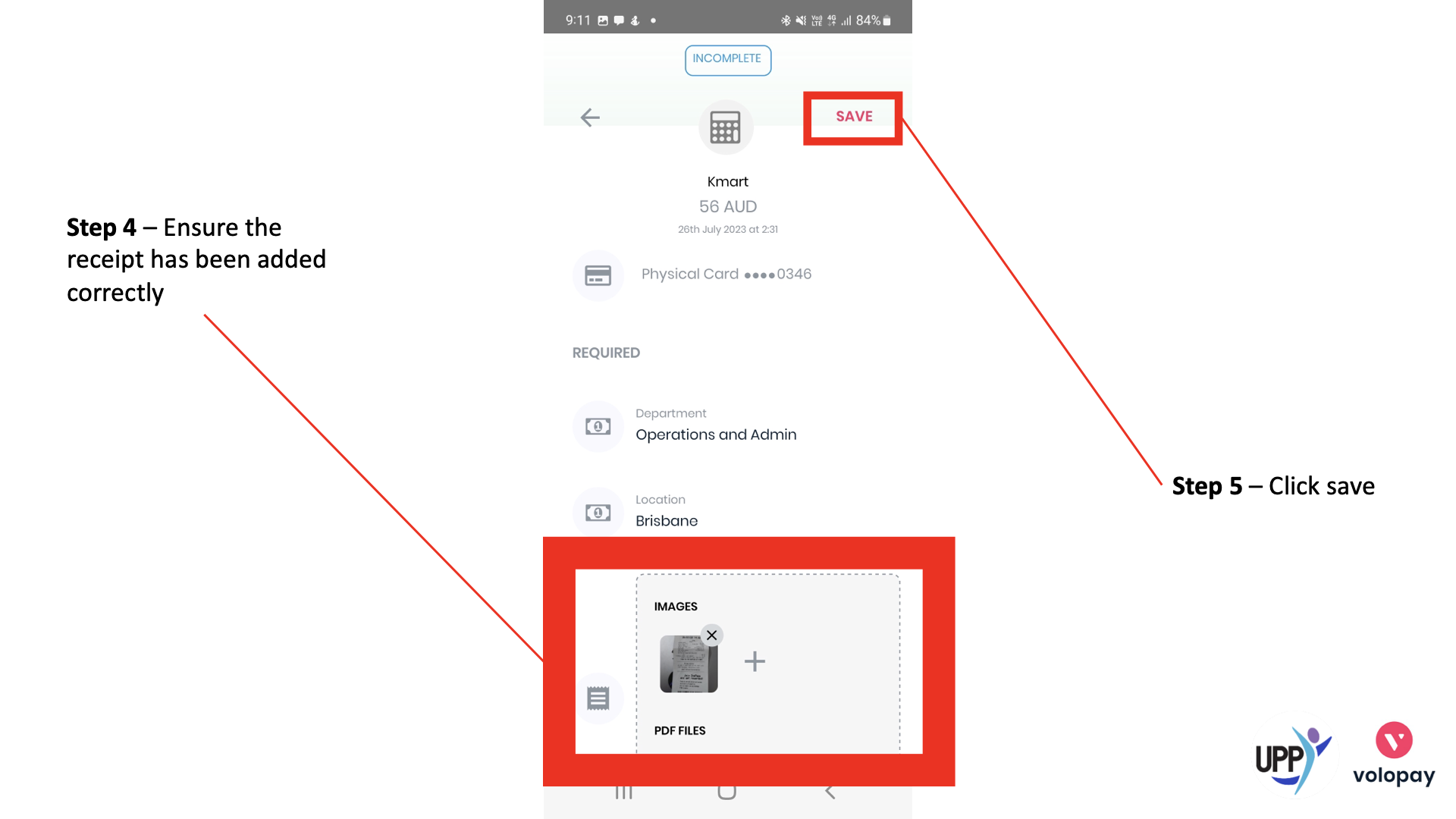
There is a lot of information here, so please read through it carefully and ask the questions you have. Please also share with me any problems that you come across, the quicker we know the quicker we can solve them.
Once you have read through this email please respond confirming you have:
Integrated your UPP Volopay Card with your own digital wallet
Read through and understood (or seeking clarification on something within) this email
Thanks again for doing your part in completing this process!
Cheers,
YOUR NAME